Microsoft released the Windows 11 operating system (OS) over a year ago. It was largely well-received as stable and user-friendly. The OS is not a large departure from the Windows 10 experience. But it does offer a lot of enhancements over the older environment.
Yet with several improvements and a free upgrade for Windows 10 users, it still lags in adoption. As of November 2022, Windows 10 still owns the lion’s share of Windows PCs. It has a 69.75 percent usage share as compared to 16.13 percent for Windows 11.
Adoption Update
When our blog was first published in 2022, Windows 11 had just 16% market share. As of August 2025, it’s surpassed 49% of Windows PCs worldwide, while Windows 10 continues to decline (StatCounter 2025). That means more businesses and individuals are making the switch and software developers are prioritizing Windows 11 compatibility.
People are slowly upgrading to the newer OS. But it’s natural for some to take a wait-and-see stance. They want to make sure it’s worth the time to upgrade. Additionally, no one wants to have to relearn their computer desktop.
The good news is that Windows 11 has a similar workspace feel to its predecessor. But it packs a lot of great productivity and security benefits that Windows 10 lacks.
Here are some of the coolest features in this current Windows OS. After taking a look, you may choose to go ahead and take the plunge into the Windows 11 universe.
–Updated September 23rd 2025 –
Fast forward to 2025, and adoption has increased significantly. Windows 11 now powers over 49% of Windows PCs worldwide (StatCounter), while Windows 10 continues to decline.
People are upgrading, but some still hesitate. It’s natural to take a wait-and-see stance — no one wants downtime, lost files, or to relearn their desktop environment. The good news is that Windows 11 feels familiar while packing in great productivity and security upgrades that Windows 10 lacks.
Here are some of the coolest features in this current Windows OS.
Snap Layouts
Most people are working with more than one app open at a time. It’s not unusual to need to reference two different windows while doing side-by-side work. Switching back and forth between apps can be tedious. It’s also time-consuming.
Approximately 68% of app users say that switching between apps costs them at least 30 minutes per day. Trying to size two windows next to each other can also be frustrating. You lose the scroll bar or can’t get to the menu items unless you resize.

Enter snap layouts. This nifty feature in Windows 11 solves the multi-app problem. Simply hover over the maximize icon at the top of any window to get access to a snap layout.
Choose the area you want for the active app, and it will snap into place and allow you to choose apps for the other slots.
Master Search
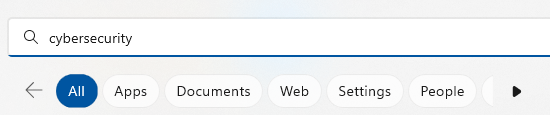
Need to find a document, website, image, or app quickly? Use the Windows 11 master search. Just click the search icon on your desktop. You’ll get a search bar that will populate results from the entered keyword.
As an added touch, Microsoft populates fun topics into the search bar every day. Learn more about James Webb Space Telescope, Coffee Day, or other fun subjects!

Once you enter your keyword, you can further refine your search. Refine it according to the type of search result you want. (apps, documents, web, etc.).
Clipchamp Video Editor
In a Windows 11 update, Microsoft gifted users with a free video editor. The new Clipchamp app makes it easy to edit videos. You don’t need to download any extra software.

Clipchamp has a lot of the features you’d expect to have to pay for. These include templates, effects, video resizing, green screen, and more.
MS Teams Video, Audio & Text Messaging
Video calls have become the norm since the pandemic. But not all video software is easy to use. Most of us have had to wait on someone late to a call because they were struggling with the app.
Windows 11 comes with Microsoft Teams preinstalled. This gives you a simple click-to-call experience. You can easily invite someone to a video or audio call. The person does not need to have a Microsoft account to connect with you. This makes things easy on both sides.
Another great feature of the Teams app in this OS is the fact that you can use it for SMS messaging. Instead of having to drag out your phone, just text someone from your desktop.
Accessibility Features
Windows 11 has some great accessibility features. They’re designed to help ensure everyone can use their computer as they want. Those with disabilities can enjoy these features. As well as those that like the extra flexibility they offer.
Four of the newest accessibility features in the OS include:
- System-wide live captions
- Focus sessions
- Voice access
- More natural voices for Narrator, Windows’ built-in screen reader
Curious about compliance and accessibility? See how Idaho healthcare providers are preparing in our blog: Navigating the Future: Staying HIPAA Compliant in 2025 — With AI.
Collections in Microsoft Edge
Microsoft Edge is the default browser for Windows. It’s worth checking out if you haven’t yet. Especially because of a feature called “collections.”
If your bookmarked favorites are becoming a mess, you’ll love this Edge capability. If you click the “plus” icon at the top of an Edge browser window, you’ll get the collections panel. Add a collection subject and click to add webpages.
You can see a preview of what you’ve added, and everything is nicely organized. Collections are easy to access and easy to delete when you’re finished with them.

Microsoft Defender SmartScreen
Phishing remains the biggest online security threat. It’s used to enable many forms of cyberattacks, from ransomware to credential theft. A significant number of phishing messages send users to malicious websites. You often don’t know until it’s too late that you’ve landed on a malware-laden site.
Windows 11 includes Microsoft Defender SmartScreen. This app helps protect you from those dangerous phishing sites. The app checks URLs in real-time against a dynamic list of reported phishing sites. It will warn you if a site is potentially dangerous.
Learn more about how phishing affects local businesses in our Cybersecurity Corner.
–Updated September 23rd 2025 –
What’s New in Windows 11 (2024–2025 Updates)
Since its initial release, Microsoft has continued to improve Windows 11 with several exciting updates that make the OS even more useful:
Copilot AI Integration
Windows 11 now includes Microsoft Copilot, an AI assistant built right into the OS. Copilot helps you draft emails, summarize documents, adjust PC settings with natural language, and even brainstorm content — all without leaving your desktop.
See how AI is transforming IT beyond Windows: The AI Revolution
Revamped File Explorer
File Explorer received a modern redesign, including tabbed browsing (like a web browser), better cloud integration with OneDrive, and enhanced preview options. This makes managing multiple files and folders much smoother.
Energy & Performance Enhancements
Recent updates have optimized Windows 11 for longer laptop battery life and improved memory management. For businesses, this translates into better efficiency across devices, something our clients appreciate when we handle their Windows 11 migrations with our managed IT services.
Widgets & Personalization
The Widgets panel has expanded to include news, calendar, weather, and productivity tools. You can now customize this panel more deeply, making a quick dashboard for your day.
Gaming Improvements
Gamers benefit from features like Auto HDR, DirectStorage, and improved game performance optimizations, making Windows 11 the best version of Windows for gaming.
Windows 11 Security: Why It Matters for Idaho Businesses
Windows 11 includes advanced security features like TPM 2.0 support, Secure Boot, and real-time phishing protection with Microsoft Defender SmartScreen. These safeguards are becoming increasingly important as phishing and ransomware attacks rise.
According to the FBI’s Internet Crime Complaint Center, ransomware attacks cost businesses billions annually, with small and medium-sized businesses being prime targets. Windows 11’s built-in security features provide a crucial first line of defense.
For Idaho businesses, especially those in healthcare, finance, and professional services, these security improvements aren’t just nice to have. They’re essential for protecting client data and maintaining compliance. Learn more about protecting your business in our guide: 4 Proven Ways to Mitigate the Costs of a Data Breach.
Security Features That Set Windows 11 Apart:
Hardware-Based Security: Windows 11 requires TPM 2.0, which provides hardware-level encryption and helps prevent firmware attacks. This is particularly important for businesses handling sensitive data.
Credential Guard: Protects against credential theft attacks that have become increasingly common. If your business uses Active Directory, this feature helps prevent pass-the-hash and pass-the-ticket attacks.
Application Guard: Isolates untrusted websites in a virtual container, preventing malware from accessing your system. Perfect for businesses where employees need to visit various websites for research or customer service.
Smart App Control: A new feature that uses AI to analyze applications and block potentially malicious software before it can run. This works alongside Microsoft Defender to provide comprehensive protection.
If you’re concerned about cybersecurity threats specific to your industry, check out our Cybersecurity Services page to see how we help Idaho businesses stay protected!
Ready to Get the Most Out of Windows 11?
Upgrading your operating system doesn’t just give you a fresh look — it unlocks AI tools like Copilot, a modern File Explorer, and stronger built-in security that Windows 10 simply doesn’t have. That being said, moving to a new OS can feel intimidating if you’re worried about downtime, compatibility issues, or data safety.
That’s where MOATiT comes in, we make Windows 11 upgrades stress-free. Our team ensures:
- Seamless migrations without lost files or broken apps.
- Post-upgrade optimization so you can take full advantage of the new features.
- Enterprise-grade security settings to protect your data from modern threats.
Contact us today for a free consultation and we’ll help you transition smoothly to Windows 11 — so you can work smarter, safer, and faster.
This Article has been Republished with Permission from The Technology Press.